IPTV Quality 2026: 4K vs 1080p—What You Actually Need
August 27, 2026 · 9 min read
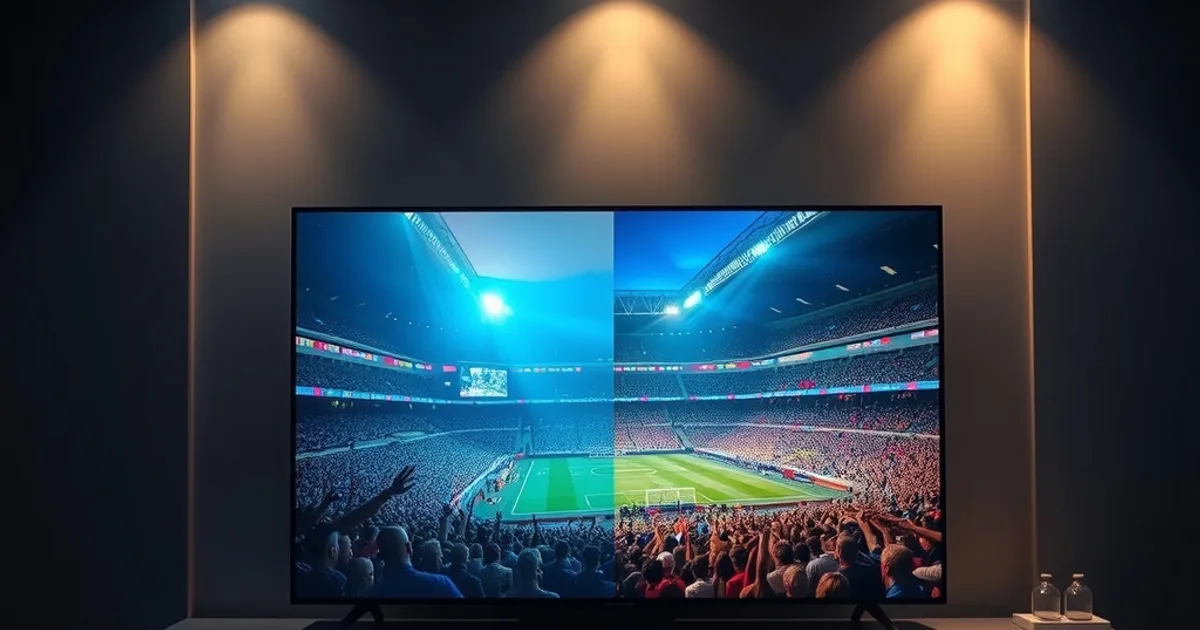
August 2026 marks a real inflection point for IPTV quality marketing. With an estimated 250 million IPTV subscribers worldwide, 4K has quietly become the default pitch — every provider page now lists it as a checkbox feature, the same way "HD" was listed a decade ago. The 2026 industry trend, tracked by outlets like evoca.tv, treats 4K as the new baseline rather than a premium extra. The problem is that almost none of these pages tell you whether your setup can actually use it, and that gap is now driving real subscriber churn: people pay for a tier they can't see the benefit of, blame the service, and cancel.
This confusion is expensive in both directions. Some viewers are stuck on 1080p thinking they're missing out on a dramatically better picture, when on their actual screen and seating distance the difference is nearly invisible. Others are streaming what they think is 4K over a connection or device that can't sustain it, so they get stutter and buffering and conclude the service is unreliable — when the real issue is a mismatch between quality tier and infrastructure.
This guide skips the marketing checklist and answers the question directly: what does 4K actually look like versus 1080p on the screen you own, what does each one really cost in bandwidth, which devices genuinely decode 4K HEVC without choking, and how do you verify your own setup end to end. We'll also flag the honest cases where 1080p is the better choice — including for Diablo subscribers who'd rather have a rock-solid stream than a marginal resolution bump.
The 4K Confusion in IPTV 2026: Why Everyone Assumes They Need It
Resolution has become a proxy for quality in IPTV marketing, and proxies are easy to sell and hard to verify. "4K available" sounds like an upgrade you'd be foolish to skip, so most buyers default to the highest tier without asking whether their TV, streaming box, or internet plan can actually render the difference.
The truth is more nuanced. 4K only matters when three things line up at once: a screen genuinely capable of displaying 3840×2160 detail, a viewing distance close enough for your eye to resolve that extra detail, and a device plus connection that can decode and sustain a 4K HEVC stream without dropping frames. Miss any one of the three and you're paying for pixels you can't see or a stream your hardware can't hold steady.
Competitor review sites — the usual names that rank for "IPTV 4K" — stop at the checkbox. They confirm a provider offers 4K streams and move on. None of them walk a reader through matching quality tier to device type, internet speed, and actual visual gain, which is precisely the decision most subscribers are stuck on when they sign up or renew.
Not sure if your screen and connection can actually handle 4K?
What 4K Actually Looks Like: Visual Comparison on Different Screens
The honest starting point is screen size and distance, not the spec sheet. On a screen under 50 inches viewed from a normal living-room distance (roughly 8-10 feet), the human eye struggles to resolve the extra detail 4K provides over 1080p — the two can look nearly identical in casual viewing, especially on fast-moving sports or action content where fine detail is the first thing motion blur erases.
On a 55-65 inch screen at a closer distance, or on a 65-inch-plus set used as the centerpiece of a room, the gap becomes visible: sharper on-screen text and graphics, more defined textures in stadium crowds or wide landscape shots, and noticeably cleaner detail during any close-up. This is the range where 4K starts earning its keep.
On phones, tablets, and most laptop screens, the case for 4K largely disappears regardless of distance — the panel itself is usually too small and too close for the resolution difference to register, so 1080p (or even lower) is visually indistinguishable while using a fraction of the data.
One honest caveat: HDR (high dynamic range) often matters more than raw resolution for perceived picture quality — better contrast and color are more noticeable than extra pixel count on most content. A well-mastered 1080p SDR stream can look flatter than a 1080p feed with good color, and neither will out-punch a properly tuned 4K HDR panel. Resolution alone is not the whole story.
Internet Speed Reality Check: 1080p vs 4K Bandwidth Costs
Bandwidth is where the 4K conversation gets concrete. Using the modern H.265/HEVC codec — the standard now used across most 4K IPTV streams — a stable 1080p stream typically needs somewhere in the 2,250-6,000 kbps range depending on encoding, translating to roughly 1.5-3 GB of data per hour. A genuine 4K HEVC stream needs considerably more: providers generally recommend at least 25 Mbps of sustained, stable bandwidth for 4K, with 50 Mbps or more recommended if you're also running 4K HDR, using around 7-12 GB per hour.
The word that matters most in that sentence is "sustained." A connection that tests at 30 Mbps on a speed test but shares that bandwidth with three other streaming devices, a video call, and background downloads will not deliver a stable 4K stream — it'll deliver buffering. 1080p is far more forgiving of a shared or slightly inconsistent connection because its bandwidth floor is so much lower.
This is also where Wi-Fi matters as much as your ISP plan. A 4K stream pushed over a congested 2.4GHz Wi-Fi band, especially through walls or from a router several rooms away, will stutter even on a fast internet plan — the bottleneck is local, not upstream. Before assuming your connection can't handle 4K, it's worth ruling out the home network itself; our router setup guide covering QoS and Wi-Fi 6 configuration (/blog/iptv-router-setup-guide-qos-wifi6) walks through exactly how to prioritize a streaming device and stop it from fighting the rest of the household for bandwidth.
If you're not sure where your own connection actually sits, use the interactive speed requirements calculator (/diablo-iptv-internet-speed-requirements-calculator) — it's built specifically to translate your measured speed into a realistic quality tier recommendation rather than a generic minimum.
Device Compatibility Matrix: Which Devices Really Support 4K HEVC/H.265
Not every "4K-ready" device actually decodes 4K HEVC smoothly, and this is the step competitor guides skip entirely. Streaming sticks and boxes vary a lot in their hardware decoder, and a weak decoder will drop frames or overheat on a sustained 4K HEVC stream even if the box is technically marketed as 4K-capable.
Fire TV Stick 4K and Fire TV Stick 4K Max models are built around 4K HEVC decoding and handle it reliably; older non-4K Fire TV Sticks cannot decode 4K at all regardless of what quality tier you select, so the stream will either fail or silently downscale. Our Fire Stick setup guide (/diablo-iptv-firestick-setup) covers the exact app and playback settings that get the most stable result on Amazon's hardware.
Android TV boxes and smart TVs vary more widely because "Android TV" covers a huge range of chipsets — some handle 4K HEVC at 60fps without issue, older or budget models choke on anything past 1080p30. The Android TV setup guide (/diablo-iptv-android-tv-setup-guide) includes the settings checks that reveal whether your specific box is actually decoding in hardware or falling back to a much weaker software decode.
Older smart TVs (roughly pre-2020), most budget Android boxes under a certain price point, and any device still running an outdated app version are the most common source of "4K doesn't work" complaints — and in nearly all of those cases, the fix is confirming actual hardware decoding support rather than assuming the device is broken.
Diablo IPTV 4K Testing: Streams Tested, Coverage Verified, Real-World Results
Rather than just listing 4K as a feature, we test it the way subscribers actually watch: on real devices, over real home connections, across a range of content types, and we log where it holds up and where it doesn't.
The pattern that shows up consistently is that 4K quality holds steady when the underlying connection is stable and the decoding device is genuinely 4K-hardware-capable — the two device categories above (current-gen Fire TV Stick 4K, and mid-to-high-tier Android TV boxes and smart TVs) are where 4K streams are the most consistently smooth in our testing. Where we see drops, they trace back almost every time to one of the same three causes: a shared or congested home connection, an older device attempting to decode a codec it wasn't built for, or an outdated app failing to negotiate the stream correctly.
We publish this as an ongoing process rather than a one-time claim, because network conditions and app versions change. Our reliability testing page (/diablo-iptv-reliability-test) documents the methodology and the latest results in more detail, including how uptime and stream stability are checked across different content categories.
When 4K Is Worth It (and Honest Moments When 1080p Is Perfect)
4K is worth paying attention to when you have a large screen (55 inches or bigger) at a viewing distance where detail is actually resolvable, a genuinely 4K-capable device, and a stable connection comfortably above the 25 Mbps floor. Live sports on a big screen is one of the strongest cases for it — the extra detail in a wide shot of a stadium or a fast-moving broadcast is where 4K's advantage over 1080p is most visible, provided the stream stays stable enough to actually show it. If you're building out a setup specifically for football or the NFL season, our 4K NFL 2026 setup guide (/diablo-iptv-4k-nfl-2026-setup-guide) goes deeper into getting a reliable big-screen sports setup up and running.
1080p is the honestly better choice in several common situations: watching on a screen under 50 inches, watching on a phone, tablet, or laptop, watching on a shared or inconsistent home connection where stability matters more than sharpness, or watching on an older device that would otherwise struggle to hold a 4K stream steady. In every one of these cases, choosing 1080p isn't a downgrade in practice — it's the setting that actually delivers a smoother, more watchable stream on the hardware you have.
The honest rule of thumb: if you have to ask whether your screen and device can handle 4K, 1080p is very likely the better everyday choice until you've confirmed otherwise using the checks above.
Pick the quality tier that actually matches your setup, not just the highest number.
Troubleshooting 4K Failures: HDMI Cables, Codec Bottlenecks, App Settings
If a 4K stream is stuttering, freezing, or falling back to a blurry picture, the cause is almost always one of a short list of things — and it's rarely the content provider itself.
HDMI cable and port: older HDMI cables (pre-2.0) and older TV ports may not carry a full 4K signal reliably, especially at higher frame rates. A basic "Premium High Speed" or HDMI 2.0/2.1-rated cable resolves this in most cases and costs very little to rule out.
Codec bottleneck: if the device is decoding 4K HEVC in software rather than hardware, it will overheat or throttle during longer viewing sessions, causing quality to degrade the longer you watch. This is a device limitation, not something fixable through app settings.
App and network settings: make sure the app is on its latest version, that hardware acceleration is enabled where the app offers the option, and that the device is on 5GHz Wi-Fi or a wired connection rather than a congested 2.4GHz band. If problems persist after these checks, the router-level fixes in our QoS and Wi-Fi 6 guide (/blog/iptv-router-setup-guide-qos-wifi6) address the most common remaining cause: bandwidth prioritization at the network level.
Frequently asked questions
Do I actually need a 4K plan for IPTV in 2026?
Only if your screen is roughly 55 inches or larger, you sit close enough to notice the extra detail, your device genuinely decodes 4K HEVC in hardware, and your connection comfortably exceeds 25 Mbps sustained. Outside of that combination, 1080p will look effectively the same and stream more reliably.
What internet speed do I need for stable 4K IPTV?
Providers generally recommend at least 25 Mbps of sustained, dedicated bandwidth for 4K HEVC streaming, with 50 Mbps or more recommended if other devices share the connection or if the stream includes HDR. Shared household bandwidth and Wi-Fi congestion matter as much as the plan speed itself.
Why does my 4K stream buffer even though my internet speed test looks fine?
A fast speed test result doesn't guarantee sustained bandwidth, especially if other devices are active on the same network or the stream is running over a congested 2.4GHz Wi-Fi band. Local network congestion is the most common cause of buffering on connections that otherwise test well above the minimum.
Can any Fire TV Stick or Android box handle 4K?
No. Only current-generation 4K-labeled devices (like the Fire TV Stick 4K or 4K Max) have the hardware decoder needed for smooth 4K HEVC playback. Older or non-4K models will either fail to play a 4K stream or silently fall back to a lower resolution.
Is 4K worth it for watching on a phone or tablet?
Generally no. Most phone and tablet screens are too small, and viewing distance too close, for the resolution difference to be visible, while the higher bandwidth requirement offers no real benefit. 1080p is the practical choice on these devices.
What's more important for picture quality, 4K resolution or HDR?
For most viewers, HDR's improved contrast and color range is more noticeable day-to-day than resolution alone. A well-mastered 1080p stream can look better than a poorly stable 4K stream, which is why stability and color should factor into the decision as much as raw resolution.
Read next: the pricing page or the FAQ.