
Watch 4 World Cup 2026 Games at Once: Multi-View IPTV Setup
August 9, 2026 · 8 min read
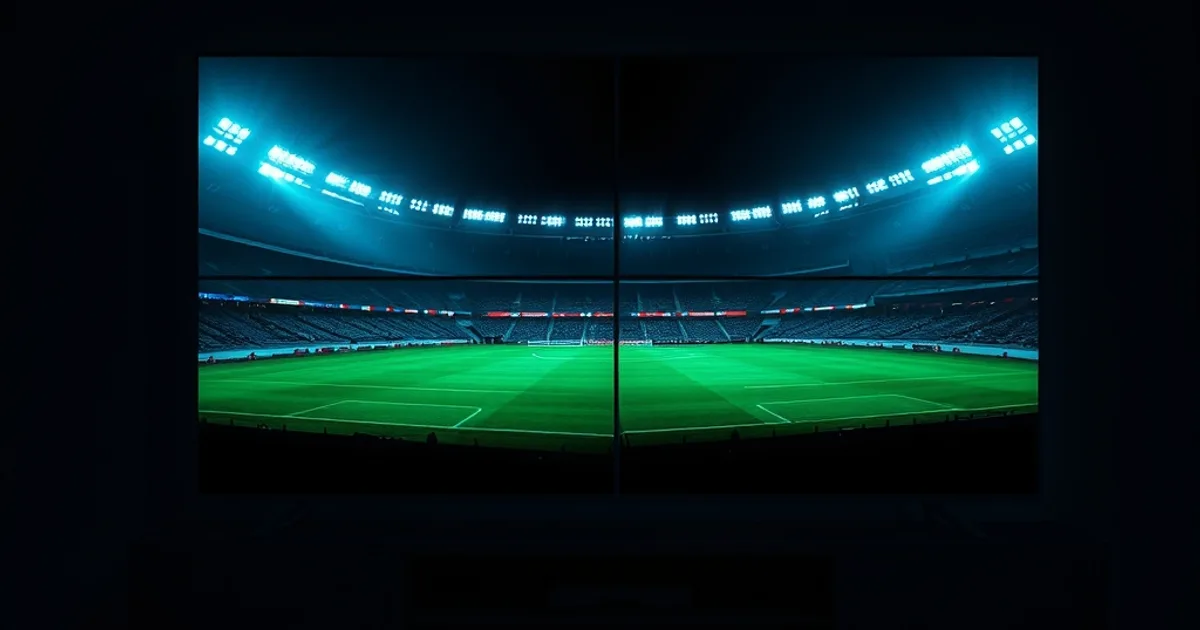
The FIFA World Cup 2026 kicks off on June 11, 2026, and for the first time the tournament expands to 48 teams and 104 matches across the United States, Canada, and Mexico. That format change matters for how you watch: the group stage regularly stacks two or even four fixtures in the same time window, so any fan trying to follow more than one group is going to run into the same problem — one screen isn't enough.
That's the exact use case multi-view IPTV solves, and it's why we're publishing this now, roughly ten months before kickoff. August is the right time to get the setup sorted, because it means testing your hardware, your connection, and your app configuration well before the group-stage schedule gets dense — not scrambling on the morning of matchday one. Multi-view has become a real trend across the IPTV app ecosystem in 2026, with tools like TiviMate Premium and Implayer both shipping dedicated multi-stream layouts, but most guides treat it as a generic feature. This one is written specifically around what actually works on Diablo IPTV — which devices hold up, what bandwidth four concurrent streams really need, and which subscription setup supports it without stream conflicts.
None of this requires guesswork on your part. Below you'll find device recommendations, real bandwidth math, the subscription structure you need, a step-by-step TiviMate configuration, layout options, and a pre-tournament checklist so everything is dialed in well ahead of June 11.
What Is IPTV Multi-View? Why It Matters for World Cup 2026
Multi-view is a layout mode inside certain IPTV player apps that splits your screen into two, three, or four independent live video tiles, each pulling a different channel stream at the same time. It's not picture-in-picture bolted onto one app — it's genuinely multiple decoders running in parallel, which is why it's more demanding on both your device and your connection than watching a single stream.
For a normal football weekend, multi-view is a nice-to-have. For the World Cup 2026 group stage, it's closer to essential. FIFA's 48-team format means the group stage is organized into groups where, on several matchdays, kickoffs overlap by design so the tournament can finish the stage in a manageable window. If you support one team and follow two or three others out of interest, you will have moments where the matches that decide qualification are being played simultaneously, and switching channels means missing a goal in the other game.
The other reason this matters more in 2026 than in past cycles is app maturity. Multi-view used to be a clunky, unreliable feature bolted onto a handful of niche apps. It's now a first-class layout option in mainstream players like TiviMate Premium, which is what most Diablo IPTV subscribers already use for EPG and channel management — see our full setup walkthrough in the diablo-iptv-android-tv-setup-guide if you haven't configured the app yet.
Not sure if your device can handle 4 simultaneous World Cup streams?
Which Devices Support Multi-View on Diablo IPTV
Multi-view lives or dies on hardware decoding capacity, not just internet speed. Running four independent video decodes at once — especially if any of them are 4K — needs a chipset built for it, and this is where cheaper streaming sticks fall short even if your connection is fast enough.
The Nvidia Shield Pro is the strongest option we've tested for this use case. Its Tegra chipset handles multiple simultaneous hardware-accelerated decode streams without the frame drops or audio desync you get on lighter hardware, and it has the RAM headroom to keep TiviMate's multi-view renderer stable over a three-hour viewing session. The Fire TV Cube (3rd Gen) is the second solid choice — its more powerful processor compared to the standard Fire TV Stick 4K makes a real difference specifically in multi-stream scenarios, even though single-stream playback looks identical between the two on paper.
Standard Fire TV Sticks (including the 4K and 4K Max) are the weak point to know about ahead of time. They can technically open a multi-view layout, but pushing four concurrent decodes on that hardware is where you'll see stuttering, tiles freezing independently, or the whole app crashing and needing a restart mid-match. If your primary device is a base Fire Stick, our recommendation is either a two-tile layout instead of four, or an upgrade to the Cube before the tournament — not a June 11 discovery.
Android TV boxes and recent smart TVs with a capable enough processor (check for at least a quad-core chipset with hardware decode support) can also run multi-view acceptably. If you're unsure whether your specific device qualifies, the safest test is simply to try a 2-tile layout during any live match well before the tournament and watch for dropped frames.
Bandwidth & Connection Requirements: HD, 4K, and 4-Stream Setup
Bandwidth for multi-view is additive — each tile pulls its own independent stream, so your total requirement is roughly the sum of each individual stream's bitrate, not a shared or compressed feed. This is the single most common cause of multi-view failures: people test one channel at HD, confirm it looks fine, then open four tiles and wonder why everything is buffering.
As a rule of thumb, plan for each HD tile to need a stable few Mbps of sustained throughput, and each 4K tile to need meaningfully more — often several times an HD stream's requirement. Four HD tiles running together will comfortably exceed what a single HD stream needs, and mixing in even one 4K tile changes the math substantially. Before matchday, run a wired speed test (not Wi-Fi) at the exact time of day you plan to watch, since ISP congestion during peak evening hours is common and is different from a mid-afternoon test result.
Wired ethernet is strongly preferable to Wi-Fi for multi-view specifically, because four parallel streams are far more sensitive to the packet loss and jitter that Wi-Fi introduces than a single stream is. If ethernet isn't possible, a 5GHz connection with your streaming device close to the router, and nothing else on the network competing for bandwidth during the match, is the next best option.
If you've already read our diablo-iptv-reliability-test breakdown, the same buffering-diagnosis logic applies here, just multiplied by four — any weak link in your connection gets exposed faster with multiple concurrent streams than with one.
Subscription Tier Selection: Multiple Concurrent Connections for Diablo IPTV
A common misconception is that multi-view is purely an app feature — it isn't. Every tile in a multi-view layout counts as a separate active stream against your subscription's concurrent-connection allowance, because you're genuinely opening four independent live feeds from the server at once, all authenticated to the same account.
This means a single-connection plan physically cannot run a 4-tile multi-view layout — the moment the third or fourth tile tries to authenticate, the server will reject it or kick an earlier stream offline, since it's designed to enforce exactly the connection count you're subscribed to. If you want a true 4-screen World Cup layout, you need a plan whose concurrent-connection count covers however many tiles you intend to run at once, with no headroom to spare if anyone else in the household is also streaming.
Check your current plan's connection count before the tournament rather than during it — our diablo-iptv-subscription-guide walks through how tiers map to connection counts, and the /pricing page has the current plan structure if you need to move up a tier. Doing this in August, months ahead of the group stage, means you're not trying to upgrade mid-tournament while every other multi-view fan is having the same realization at once.
Step-by-Step Setup: TiviMate Premium Multi-View Configuration
TiviMate is the app most Diablo IPTV subscribers already run for its EPG and channel-list handling, and its Premium tier is what unlocks multi-view. If you haven't set up the base app yet, work through diablo-iptv-android-tv-setup-guide first — multi-view is a layer on top of a working single-stream setup, not a replacement for it.
Once TiviMate Premium is active, open any live channel and use the multi-view toggle from the player controls (usually mapped to a dedicated remote button or accessible from the on-screen menu depending on your TiviMate version). From there you add channels to the layout one at a time — TiviMate will prompt you to pick from your channel list for each tile, so having your World Cup channels organized into a favorites group ahead of time makes this much faster than scrolling the full EPG live.
Audio in multi-view is single-channel by design — only one tile plays sound at a time, and you switch the active audio tile by selecting it (usually a single remote click or a highlight-and-select action). Get comfortable with that control before matchday, since fumbling for the right tile when a goal happens in the muted stream defeats the entire point.
Test the full 4-tile configuration at least once during a live event before the tournament starts. A dry run during any regular football broadcast will surface any device or connection issue while there's still time to fix it.
Layout Options & Screen Arrangements for 4 Simultaneous Matches
TiviMate and similar apps typically offer 2-tile (side-by-side or top-bottom), 3-tile, and 4-tile grid layouts, and which one makes sense depends on your screen size and viewing distance, not just how many matches are on. On a smaller TV, four tiles can render each match too small to comfortably track the ball, especially for 4K content that then gets downscaled visually anyway.
For most living-room setups, a 2-tile split is the sweet spot for genuinely watching two matches — you can follow both closely and swap audio between them. A 4-tile grid works better as a scoreboard-style layout: one match as your primary audio focus, the other three as visual score-and-momentum trackers you glance at, switching audio over only when something happens.
If your TV is large enough (55 inches or above at a normal seating distance) and your device handles four decodes cleanly, a symmetrical 4-tile grid is workable for genuinely following all four games. Below that screen size, we'd recommend 2 or 3 tiles as the practical ceiling — the World Cup 2026 group stage often has overlapping kickoffs in sets of two, so a 2-tile layout timed correctly covers most of the scenarios you'll actually hit.
Optimizing Buffer, Codecs & 4K Playback for Smooth Multi-Stream
Buffer settings matter more in multi-view than single-stream because your device is managing four buffers simultaneously, each competing for the same memory and network resources. In TiviMate's playback settings, a moderate buffer increase (rather than the default) gives each tile more cushion against brief network fluctuations, at the cost of a slightly longer initial load per tile — a worthwhile trade for a 4-stream setup.
Codec choice affects decode load directly. H.265/HEVC streams are more efficient per unit of visual quality than older H.264 streams, meaning less bandwidth and less decode strain for the same picture — which matters a lot when you're running four decodes at once. If your device and the channel both support H.265, prioritize it in TiviMate's stream preferences for multi-view sessions specifically.
For 4K tiles, be realistic about how many you actually need. Running one 4K tile as your primary match and three HD tiles as secondary trackers is far more sustainable than four 4K tiles, both for bandwidth and for decode load, and visually you likely won't notice the difference on a secondary glance-tile anyway. Reserve full 4K for the match you're actually watching with sound on, and downgrade the rest to HD in the channel settings before kickoff.
Get the connection count you need for a full multi-view World Cup setup before June 11.
Pre-Tournament Checklist: Setup 1 Week Before June 11
With ten months of runway from this article's publish date, there's no reason to leave any of this until matchday. About a week before June 11, 2026, run through this checklist: confirm your subscription tier covers the connection count you need for your intended layout (check via /pricing or diablo-iptv-subscription-guide), run a wired speed test during your typical evening viewing window, and do a full live 4-tile test run in TiviMate to confirm your device handles it without drops.
Also worth doing that same week: organize a dedicated World Cup favorites group in your channel list so you're not hunting through the full EPG live, and check the group-stage schedule once it's finalized closer to the tournament so you know exactly which days will have your overlapping matches — that's when the multi-view setup actually earns its keep.
If you want the broader channel picture beyond just World Cup coverage, diablo-iptv-sports-channels covers what's available across the wider football and sports lineup, useful context if you're deciding which channels deserve a permanent tile versus a temporary one during the tournament window.
Frequently asked questions
Can I run multi-view on a single-connection IPTV subscription?
No. Each tile in a multi-view layout is a separate live stream authenticating against your account, so a single-connection plan can only sustain one tile — additional tiles will be rejected or will disconnect an existing stream. You need a plan whose concurrent-connection count matches or exceeds your intended tile count.
Do I need 4K for multi-view, or is HD fine?
HD is fine, and often preferable, for secondary tiles. 4K is best reserved for whichever match is your primary audio focus — running multiple 4K tiles simultaneously multiplies your bandwidth and decode requirements without much practical benefit on a secondary glance-tile.
Will a standard Fire TV Stick handle a 4-tile World Cup layout?
It's not the ideal device for four simultaneous decodes — you're more likely to see stuttering or app instability compared to a Fire TV Cube (3rd Gen) or Nvidia Shield Pro. If a standard Fire Stick is what you have, a 2-tile layout is a safer target than 4.
Does multi-view play audio from all tiles at once?
No, audio is single-channel — only one tile plays sound at a time, and you switch which tile is active from the player controls. This is normal behavior across multi-view apps, not a Diablo-specific limitation.
How much bandwidth do I actually need for 4 simultaneous streams?
Bandwidth needs are additive across tiles, not shared, so plan for roughly the sum of each individual stream's requirement. Four HD tiles need meaningfully more than a single HD stream, and adding any 4K tile increases that total substantially — test with a wired connection at your actual viewing time, not a generic speed test.
When should I set up multi-view before the World Cup starts?
Test your full configuration at least a week before June 11, 2026, including a live 4-tile trial run, so any device, connection, or subscription issue surfaces while there's still time to fix it rather than during the opening matches.
Read next: the pricing page or the FAQ.